Here's a function that you can use to load an xml object from an xml-formatted string in JavaScript:
function loadXMLFromString(text)
{
try //Internet Explorer
{
xmlDoc=new ActiveXObject('Microsoft.XMLDOM');
xmlDoc.async='false';
xmlDoc.loadXML(text);
}
catch(e)
{
try //Firefox, Mozilla, Opera, etc.
{
parser=new DOMParser();
xmlDoc=parser.parseFromString(text,'text/xml');
}
catch(e) {alert(e.message);}
}
return xmlDoc;
}
Friday, 27 January 2012

Thursday, 26 January 2012
How to remove whitespace dots in Visual Studio Text Editor
If white space (spaces, tabs, etc) is showing as dots in the visual studio text editor, you can undo this by using the key combination Ctrl+E,S.
If you prefer the dots (why??) you can enable them again by pressing Ctrl+R,W.
HTH
If you prefer the dots (why??) you can enable them again by pressing Ctrl+R,W.
HTH
Friday, 23 September 2011
How to redirect in web.config
Let's say you want to redirect visitors from one subdomain to another. You can do this by putting this in your web.config for the redirected-from application:
<?xml version="1.0" encoding="UTF-8"?>
<configuration>
<system.webServer>
<httpRedirect enabled="true" destination="https://abc.example.com/newpages" httpResponseStatus="Permanent" />
</system.webServer>
</configuration>
This is ideal for obsolete website addresses that may still be saved in favorites, or linked to on a corporate intranet, or for redirecting common mistakes, such as users entering www.example.com/webmail when what they really want is mail.example.com/webmail.
<?xml version="1.0" encoding="UTF-8"?>
<configuration>
<system.webServer>
<httpRedirect enabled="true" destination="https://abc.example.com/newpages" httpResponseStatus="Permanent" />
</system.webServer>
</configuration>
This is ideal for obsolete website addresses that may still be saved in favorites, or linked to on a corporate intranet, or for redirecting common mistakes, such as users entering www.example.com/webmail when what they really want is mail.example.com/webmail.
Monday, 29 August 2011
Flash CS3 Vista install problems
If you are having trouble with a silently failing install of Adobe Flash CS3 on Windows Vista, I may have the solution:
Start -> All Programs -> Accessories
Right-Click -> Run as Administrator.
Enter the command:
regsvr32 jscript.dll
hit enter.
Once the jscript dll is registered, the Adobe installed should now be a ble to run and install Flash CS3 on your computer.
Start -> All Programs -> Accessories
Right-Click -> Run as Administrator.
Enter the command:
regsvr32 jscript.dll
hit enter.
Once the jscript dll is registered, the Adobe installed should now be a ble to run and install Flash CS3 on your computer.
Monday, 18 July 2011
Google Chrome standalone installer
Admins often need to install and upgrade via group policy or install packages on machines that are not connected to the internet. For Google's Chrome browser this can be accomplished by downloading the Chrome Standalone Installer.
Wednesday, 29 June 2011
List all databases with sqlcmd
sqlcmd -s <db server or instance> -q "exec sp_databases"
Examples:
sqlcmd -s localhost -q "exec sp_databases"
sqlcmd -s dbserver -u loginname -p password -q "exec sp_databases"
sqlcmd -s ./MSSQLSERVER -u loginname -p password -q "exec sp_databases"
Examples:
sqlcmd -s localhost -q "exec sp_databases"
sqlcmd -s dbserver -u loginname -p password -q "exec sp_databases"
sqlcmd -s ./MSSQLSERVER -u loginname -p password -q "exec sp_databases"
Deleting a database with sqlcmd
sqlcmd -s <servername> -q "DROP DATABASE <database name>"
OR
sqlcmd -s ./<sqlserver instance name> -q "DROP DATABASE <database name>"
Examples:
OR
sqlcmd -s ./<sqlserver instance name> -q "DROP DATABASE <database name>"
Examples:
sqlcmd -s dbserver -u username -p password -q "DROP DATABASE products"
sqlcmd -s localhost -q "DROP DATABASE products"
sqlcmd -s ./MSSQLSERVER -q "DROP DATABASE products" Sunday, 5 December 2010
Comprehensive guide to SVN+trac install on Ubuntu 10.04
Software Change Management (SCM) is fundamental for all professional developers, even if you work alone. SCM systems offer more than just backup; they allow you total freedom to develop, knowing that you will be able to revert to a particular revision of code at any time. They also allow teams to develop features in separate branches before merging them into one product for release. Implicit in most SCM systems is version control - the ability the stamp a particular revision or set of revisions as "version 1.0", "versions 1.1", etc.
SVN and Trac are two very popular tools used to create SCM systems. Best of all, they are both open-source, so setting up your SCM system is free!
SVN works as the engine room of the operation. It is a very popular and powerful software version control engine. SVN does all the work of version control: checking-in, checking-out, creating branches, merging branches, comparing revisions, adding new code to the repository, etc. Trac is a web interface, a "web-based project management system" which interacts with SVN.It als comes with some added extras, including a ticket system, for recording bugs and feature requests and assigning them to a developer to fix.
But I digress. Suffice to say, SVN and trac work well together. I personally use them every day and couldn't do without them.
For this tutorial, we are going to set our SCM server up on Linux - again because it's free, but also because for this sort of thing, Linux is the best way to go. (It is easier to install in Linux, and there are some neat scripted add-ons which would just be a pain to set up in a Windows environment - more on that later).
I'll proceed in this order:




SVN and Trac are two very popular tools used to create SCM systems. Best of all, they are both open-source, so setting up your SCM system is free!
SVN works as the engine room of the operation. It is a very popular and powerful software version control engine. SVN does all the work of version control: checking-in, checking-out, creating branches, merging branches, comparing revisions, adding new code to the repository, etc. Trac is a web interface, a "web-based project management system" which interacts with SVN.It als comes with some added extras, including a ticket system, for recording bugs and feature requests and assigning them to a developer to fix.
But I digress. Suffice to say, SVN and trac work well together. I personally use them every day and couldn't do without them.
For this tutorial, we are going to set our SCM server up on Linux - again because it's free, but also because for this sort of thing, Linux is the best way to go. (It is easier to install in Linux, and there are some neat scripted add-ons which would just be a pain to set up in a Windows environment - more on that later).
I'll proceed in this order:
- Install Linux.
- Install and configure SVN and Apache.
- Install and configure trac.
- Trac-SVN Synchronization.
- Using trac and SVN.
Install Linux
Ubuntu Linux is my preferred distro, so were going to get the latest release of Ubuntu Server. You can either:
- Install from a CD / ISO: http://www.ubuntu.com/server/get-ubuntu/download
- Install a virtual machine already setup: http://www.thoughtpolice.co.uk/vmware/#ubuntu10.04
I'm going to install it from the ISO, because I want to show how to install Linux too. if you already have Linux installed, skip to svn server setup.
Step 1 - Choose your language then begin the installation by selecting "Install Ubuntu Server":

Step 2 - The installer will begin by going through various steps asking you for your country, language and keyboard layout. One these are set to your liking, it will begin to install OS components:


Step 3 - You will now be asked to choose a name for the machine - this is just to make it easy to identify on your network:

Step 4 - After a couple more screens, you will be shown the partitioning options. If you have enough expertise to know what encrypted LVM is, why are you reading this guide!! Otherwise, just leave the default selection and hit enter (there are a few more option screens after this, but 99% of people will want to simply hit Yes on every one):

Step 5 - After the partitioning is complete (2 steps), the OS will begin to install. Go have a cup of coffee ;) :

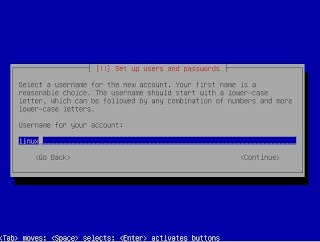
Step 6 - Set up the full name, default username, and password for the new user:


Step 7 - Choose Home Directory Encryption and http proxy settings - if unsure, just choose No and (blank) for these:

Step 8 - the installer will now configure "apt" - this is basically the Linux equivalent of Windows update:

Step 9 - Select and Install Software. I would recommend that you choose "Install security updates automatically". If you choose "No automatic updates", you will need to periodically run the command "sudo apt-get update" to load the latest security updates for Linux packages. (Note - to update non-security programs you will still need to run apt-get, but this doesn't really present an issue unless you want to install a new package which depends on packages that are already installed. Even then, the package manager will sort it out for you.)

Step 10 - Select the server type. This step automatically installs certain packages for you depending on what you want to do with Linux. In this case, choose LAMP Server (Linux, Apache, MySQL, PHP) since SVN and trac need these packages:
Step 11 - After a few more steps, the installation should be complete. Enter your login name and password to log in to Linux.
By default there will be no Graphical User Interface (GUI) since this is a server. But, for our purposes, having a desktop will be useful.
Step 12 - Install a desktop window manager. There are 2 ways to do this.
- The "Everything but the kitchen sink" approach. This installs the GUI and many more packages which you may not need. To do this enter the command: sudo aptitude install ubuntu-desktop. The drawback of this approach is that it may take a good while to download the packages (about 366MB to download, using 1.9GB of space when unpacked).
- If you just want to install the Ubuntu Linux desktop without any extras like OpenOffice, etc, the command is sudo aptitude install --without-recommends ubuntu-desktop. In contrast, this is about 118MB to download, using 630MB of space when unpacked:

Step 13 - Once that is done, start up the Desktop GUI. Simply enter startx and voila!:

To make your SVN server accessible via the HTTP protocol, we need to install a web server. Apache 2 is tried and tested to integrate well with svn (and trac) so we'll use that.
Step 1 - If apache is not already installed, run the command:
$ sudo aptitude install apache2
Step 2 - With this SVN installation, we are going to create a main /svn parent directory with the repository for my project under it. That way, you can add a directory for each repository/project. This keeps everything nice and organized, and helps when backing up. First, we need to get the right packages:
$ sudo aptitude install subversion libapache2-svn
Step 3 - Next we can set the global SVN settings:
$ sudo gedit /etc/apache2/mods-enabled/dav_svn.conf &
Edit the file so that it looks like the following (comment lines removed):
<Location /svn>
DAV svn
SVNParentPath /svn
AuthType Basic
AuthName "Subversion Repository"
AuthUserFile /etc/apache2/dav_svn.passwd
AuthzSVNAccessFile /etc/apache2/authz_svn.access
Require valid-user
</Location>
Step 4 - Create our first SVN user:
$ sudo htpasswd -cm /etc/apache2/dav_svn.passwd johndoe
Next, enter and confirm your password:
$ New password: <your pass>
$ Re-type new password: <same again>
Note, when adding subsequent users, the command is slightly different:
$ sudo htpasswd -m /etc/apache2/dav_svn.passwd jimdoe
As you may have noticed, we removed the "c" from the flag - because we aren't creating the password file this time around. Note, when the passwords are saved in the file - dav_svn.passwd, they are hashed for security.
Step 5 - Now we can set up the authorization for our new user. This basically controls which repositories he has access to and what he can do in them (read, write, etc). We do this by creating the file authz_svn.access:
$ sudo gedit /etc/apache2/authz_svn.access &
Let's allow our first user access to a repository (one which is not created yet ;)). Add this to authz _svn.access and save it. Note the commented lines, which are not needed, but show how you can setup group access levels.
#[groups]
#developers = dev1, dev2
[project1:/]
#@developers = rw
#developers = dev1, dev2
[project1:/]
#@developers = rw
johndoe = rw
Adding more SVN users and changing permissions is self-explanotory.
Step 6 - Restart Apache:
$ sudo apache2ctl restart
At this stage you get an error message that reads similar to: "apache2: Could not reliably determine the server's fully qualified domain name, using 127.0.1.1 for ServerName",
This is easy to fix -
1. Edit your apache conf.d file:
$ sudo gedit /etc/apache2/conf.d/fqdn
2. Add the line ServerName localhost.
3. You should now be able to restart apache.
Step 7 - Create the /svn parent directory and initial project dir, then assign permissions to give apache permission to access the repository:

$ sudo mkdir /svn
$ sudo svnadmin create /svn/project1
$ sudo chmod -R 777 /svn
$ sudo chown -R www-data:www-data /svn
You should now be able to browse your empty repository:

Step 8 - Run an svn import to create the initial structure for the repository:
Now let's create a directory for the trac database to live, and setup access for apache:
$ sudo mkdir /tmp/svninit
$ sudo mkdir /tmp/svninit/branches
$ sudo mkdir /tmp/svninit/trunks
$ sudo mkdir /tmp/svninit/tags
$sudo svn import /tmp/svninit http://localhost/svn/project1 -m "initial import" --username johndoe
When you browse the repo now, it will be at revision 1, with the new directory structure.
Install and configure trac
As a prerequisite you will need to install python before installing trac:
$ sudo aptitude install libapache2-mod-python libapache2-svn python-setuptools python-subversion
Trac will install with sudo apt-get install trac command, but I would recommend that you get the latest stable build off the edgewall trac website as the Ubuntu repositories may not be up to date. At the time of writing, that is version 0.12:
$ sudo easy_install http://ftp.edgewall.com/pub/trac/Trac-0.12.tar.gz
Now let's create a directory for the trac database to live, and setup access for apache:
$ sudo mkdir /var/lib/trac
$ sudo chown -R www-data:www-data /var/lib/trac
$ sudo ln -s /var/lib/trac /trac
Now we must create a new site for apache:
$ sudo gedit /etc/apache2/sites-available/trac
Add the following markup to the file and save:
<Location /trac>
SetHandler mod_python
PythonInterpreter main_interpreter
PythonHandler trac.web.modpython_frontend
PythonOption TracEnvParentDir /var/lib/trac
PythonOption TracUriRoot /trac
</Location>
<LocationMatch "/trac/[^/]+/login">
AuthType Basic
Authname "Trac"
AuthUserFile /etc/apache2/dav_svn.passwd
Require valid-user
</LocationMatch>
Next, enable the trac site and reload apache:
$ sudo a2ensite trac
$ sudo /etc/init.d/apache2 reload
Next, add this markup to trac.ini:
$ sudo gedit /etc/trac.ini
[header_logo]
alt = Project1logo
height = -1
link =
src = /logo.gif
width = -1
Finally, initialize the trac environment for your project (this is where trac keeps the database for wiki pages, tickets, reports, and so on):
Since version 0.12, trac-admin doesn't ask you for the source code repository details - you have to set this up manually now, but it's easy enough. Just edit your trac.ini file:
Alternatively, add repositories through the trac's Administration page. (See below.) Whatever way you add a repository to trac, you will need to manually synchronize the cache for that repository with trac once. To do this you can run the command:
Next, we need to reset the ownership of the trac environment to the www-data user so that the trac database is accessible:
Finally, we need to setup trac permissions and authentication. You can do this through the trac-admin shell command, but startingwith trac 0.11 there is a tab withing the trac site where you can perform administration operations. To see this tab, users need to have the TRAC_ADMIN permission:


Go to /svn/project1/hooks. Here you will see the 2 files: post-commit.tmpl and post-revprop-change.tmpl.
Add the following lines to post-commit.tmpl:
You may need to alter execute permissions/ownership on trac-admin and/or edit your /etc/sudoers file to not require a password to execute trac-admin. Eg:
username ALL= NOPASSWD: /path/to/the/executable
Using trac and SVN
$ sudo trac-admin /trac/project1 initenv
This will ask you for some details about your project. Anything you are unsure of, just hit enter to use defaults.
Since version 0.12, trac-admin doesn't ask you for the source code repository details - you have to set this up manually now, but it's easy enough. Just edit your trac.ini file:
$ sudo gedit /etc/trac.ini
[repositories]
project1.dir = /svn/project1
project1.description = My first svn repository.
project1.type = svn
project1.url = http://example.com/svn/project1
Alternatively, add repositories through the trac's Administration page. (See below.) Whatever way you add a repository to trac, you will need to manually synchronize the cache for that repository with trac once. To do this you can run the command:
$ sudo trac-admin /trac/project1 repository resync "project1"
(In the next section we will add post-commit hooks to allow trac to sync with SVN after every commit, so that it always shows the latest revision; but let's finish off the trac setup first.)
Next, we need to reset the ownership of the trac environment to the www-data user so that the trac database is accessible:
$ sudo chown -R www-data:www-data /var/lib/trac
$ sudo apache2ctl restart
You should now see the head revision when you browse http://localhost/trac/project1.
Finally, we need to setup trac permissions and authentication. You can do this through the trac-admin shell command, but startingwith trac 0.11 there is a tab withing the trac site where you can perform administration operations. To see this tab, users need to have the TRAC_ADMIN permission:
$ sudo trac-admin /trac/project1 permission add johndoe TRAC_ADMIN
Now, when you log in to trac, you will see the Admin tab:

If you click on Permission at the left, you can add/remove permissions from user. I recommend removing all but TICKET_VIEW, TIMELINE_VIEW and WIKI_VIEW from "anonymous". This means that unauthenticated users will not be able to browse source code from your SVN repository. However, the exact configuration you choose is up to you.

Trac-SVN Synchronization
Prior to 0.12, Trac synchronized its cache with the SVN repo after every commit. This approach isn't practical ever since multiple repositories were introduced as a new feature to trac. For this reason, explicit synchronization through SVN's post-commit and post-revprop-change scripts is needed. This is essentially where you can instruct SVN to run a program after a commit of a changeset, or after the revision properties change. In this case, the program we will run is trac-admin.
Add the following lines to post-commit.tmpl:
REPOS="$1"
REV="$2"
TRAC-ENV="/trac/project1"
/usr/bin/trac-admin "$TRAC-ENV" changeset added "$REPOS" "$REV"
Add the following lines to post-revprop-change.tmpl:
REPOS="$1"
REV="$2"
TRAC-ENV="/trac/project1"

/usr/bin/trac-admin "$TRAC-ENV" changeset modified "$REPOS" "$REV"
You may need to alter execute permissions/ownership on trac-admin and/or edit your /etc/sudoers file to not require a password to execute trac-admin. Eg:
username ALL= NOPASSWD: /path/to/the/executable
Using trac and SVN
I'm going to assume you're in Windows for development, since there are just too many OS possibilities to cover. The best SVN client I have used in Windows is TortoiseSVN. Get this from http://tortoisesvn.net/downloads.
Once this is installed, you're going to want to create folders for each repository. Each of these is known as a "working copy". It's where you edit your code before commiting it to the repository. If you are working in a team, you will usually want to do you development in a branch before merging it into the trunk. You will become very familiar with this terminology as you use your SVN system.
Right-click on your working copy, select Tortoise SVN -> Checkout.... Then enter the full path of your SVN repository on your server. Checkout into your working copy and you're ready to go. You don't have to checkout the whole repository; in fact if you are checking out from a large existing SVN repo, you will most likely just check out the branch you are developing in.

I've just added a simple file to my working copy and committed it to the repository to prove that the hooks work:

Once this is installed, you're going to want to create folders for each repository. Each of these is known as a "working copy". It's where you edit your code before commiting it to the repository. If you are working in a team, you will usually want to do you development in a branch before merging it into the trunk. You will become very familiar with this terminology as you use your SVN system.
Right-click on your working copy, select Tortoise SVN -> Checkout.... Then enter the full path of your SVN repository on your server. Checkout into your working copy and you're ready to go. You don't have to checkout the whole repository; in fact if you are checking out from a large existing SVN repo, you will most likely just check out the branch you are developing in.

I've just added a simple file to my working copy and committed it to the repository to prove that the hooks work:

That's pretty much the basics. If I missed anything, or you want anymore info, let me know by commenting.
Cheers!
Sunday, 21 November 2010
How to tell aptitude to ignore recommended packages in Linux
Ubuntu (and Debian) Linux will, by default, add "recommended" / "suggested" packages to some installs. If you are short of storage space, this can be a problem. Here, I present 2 ways, one persistent, one temporary, to prevent these extra packages being installed.
The persistent way
Create or Edit the file /etc/apt/apt.conf file and add the following contents to it:
// Recommends are as of now still abused in many packages
APT::Install-Recommends "0";
APT::Install-Suggests "0";
This will apply to ALL package installs.
The temporary way
Alternatively, if you would prefer to normally install recommended packeages, but ignore them in one case, you can simply add a flag to the command line. Eg:
sudo aptitude install <package>
sudo aptitude install --without-recommends <package>
Note, you can have this set up the opposite way. To do this, make the changes above under "The persistent way". Then, when you want to install a package WITH all the recommended/suggested additional packages, simply add a --with-recommends flag to the command (the flag overrides the apt.conf file).
The persistent way
Create or Edit the file /etc/apt/apt.conf file and add the following contents to it:
// Recommends are as of now still abused in many packages
APT::Install-Recommends "0";
APT::Install-Suggests "0";
This will apply to ALL package installs.
The temporary way
Alternatively, if you would prefer to normally install recommended packeages, but ignore them in one case, you can simply add a flag to the command line. Eg:
sudo aptitude install <package>
sudo aptitude install --without-recommends <package>
Note, you can have this set up the opposite way. To do this, make the changes above under "The persistent way". Then, when you want to install a package WITH all the recommended/suggested additional packages, simply add a --with-recommends flag to the command (the flag overrides the apt.conf file).
Friday, 19 November 2010
Automatic logon in Windows systems
For process automation it can be handy to have scripts running to restart machines after installing update packs, or just for regular maintenance. One trick that I have found really handy when I restart a server, is to have it log on automatically. But this is only one application for automatic logon. Shared workstations, terminals, remote machines are all areas where it is potentially useful.
In this post, I'll outline a few way to manage your accounts to allow automatic login either locally or remotely.
First of all, if you have administrative rights, you can use User Account Control to remove the need for users to log in using a password.


In this post, I'll outline a few way to manage your accounts to allow automatic login either locally or remotely.
First of all, if you have administrative rights, you can use User Account Control to remove the need for users to log in using a password.
- To do this, go to Start -> Run -> enter "control userpasswords2"
- In the User Accounts window, un-check "Users must enter a user name and password to use this computer"
- That's it.

On a related note: If you manage several computers, you may wish to save passwords for all of them locally, so that you can easily administer them from your computer, without leaving them unsecure by removing the password on each machine:
- Open the User Accounts window as step 1 shows.
- Under the Advanced tab, click Manage Passwords.

- You can use the Stored User Names and Passwords windows to store credentials for servers, websites and programs:

- It goes without saying, make sure your PC has a strong password if you are going to use it to store credentials for several websites and servers.
Lastly, for those who prefer to do things themselves, you can edit the registry to allow windows to automatically log in. The registry keys you need to edit are in the folder HKEY_LOCAL_MACHINE -> SOFTWARE -> Microsoft -> Windows NT -> Current Version -> Winlogon.
You need to add the following keys - DefaultUserName, DefaultPassword, AutoAdminLogon. The first 2 of these string registry keys should beset to the username and password of the administrator account. AutoAdminLogon should be set to "1".

This last method is best used either if you are the only person with access to the machine, or if security is not an issue with this machine - e.g.: with a shared workstation - because the password is shown to anyone who knows where to look in registry. You wouldn't want to do this with your personal laptop where you store private information.
Hope this helps ;)
Hope this helps ;)
Tuesday, 5 October 2010
Using bitwise operators with enum in C#
Enumerations, or enums for short, are not something we tend to use every day. But they do have their place, and can often be used to solve unusual problems elegantly, while making your code easier to understand.
One area in which they are really handy, is where you need to set a property of some object, which itself can have one or many values. One application I am working on now uses a provider model back-end to store xml data in a database. I wanted to increase the robstness and flexibility of this application, by allowing the data to come from either source - eg: in case the database server goes down. To add to the problem, I had created triggers to prune old data from various database tables. Basically, I have a Data table, and another 3 tables containing statistics about the data, by day, month and year. The Data and DaysStats tables are trimmed after 1 year, the MonthsStats table after 3 years, and the YearsStats table after 5 years. So depending on the date requested by the application, the data layer needs to know where it can get the data from. An Enum is at the heart of how I handle this in my data layer. I'm going to show it to you, then explain it:
The [Flags] attribute will allow us to do bitwise combinations of the DataSource values. You can see this in the "All" value - this is basically for convenience in my code, and is equivalent to writing "Xml | SqlDays | SqlMonths | SqlYears".
Before I go on, let me explain bitwise logic. You see, the values in this enum are stored as bytes like so:
Xml = 1 (0x00000001)
SqlDays = 2 (0x00000010)
SqlMonths = 4 (0x 00000100)
SqlYears = 8 <0x00001000)
When I do the bitwise OR operation to get All, this does:
00000001
OR
00000010
OR
00000100
OR
00001000
which equates to 00001111 (Binary OR Operation)
Now lets say in my data access layer, I want to access data from 1 year and 3 months ago. My code would automatically set my instance of DataSource like so:
m_dataSrc |= DataSource.SqlMonths | DataSource.SqlYears | DataSource.Xml
which is just a shortcut for:
m_dataSrc = m_dataSrc | DataSource.SqlMonths | DataSource.SqlYears | DataSource.Xml
When working with a bitwise enums, use bitwise ORs to set values, but bitwise ANDs to check values. For example:
if((m_dataSrc & SummaryDataSource.SqlDays) > 0)
// Get data from database
else
// Get data from xml files
That's really all there is to it. Bitwise enums are really easy to use and can save you many lines of code and hours of frustration to give you an elegant solution to many problems.
One area in which they are really handy, is where you need to set a property of some object, which itself can have one or many values. One application I am working on now uses a provider model back-end to store xml data in a database. I wanted to increase the robstness and flexibility of this application, by allowing the data to come from either source - eg: in case the database server goes down. To add to the problem, I had created triggers to prune old data from various database tables. Basically, I have a Data table, and another 3 tables containing statistics about the data, by day, month and year. The Data and DaysStats tables are trimmed after 1 year, the MonthsStats table after 3 years, and the YearsStats table after 5 years. So depending on the date requested by the application, the data layer needs to know where it can get the data from. An Enum is at the heart of how I handle this in my data layer. I'm going to show it to you, then explain it:
[Flags]
private enum DataSource : byte
{
Xml = 1,
SqlDays = 4,
SqlMonths = 8,
SqlYears = 16,
All = Xml | SqlDays | SqlMonths | SqlYears
}
The [Flags] attribute will allow us to do bitwise combinations of the DataSource values. You can see this in the "All" value - this is basically for convenience in my code, and is equivalent to writing "Xml | SqlDays | SqlMonths | SqlYears".
Before I go on, let me explain bitwise logic. You see, the values in this enum are stored as bytes like so:
Xml = 1 (0x00000001)
SqlDays = 2 (0x00000010)
SqlMonths = 4 (0x 00000100)
SqlYears = 8 <0x00001000)
When I do the bitwise OR operation to get All, this does:
00000001
OR
00000010
OR
00000100
OR
00001000
which equates to 00001111 (Binary OR Operation)
Now lets say in my data access layer, I want to access data from 1 year and 3 months ago. My code would automatically set my instance of DataSource like so:
m_dataSrc |= DataSource.SqlMonths | DataSource.SqlYears | DataSource.Xml
which is just a shortcut for:
m_dataSrc = m_dataSrc | DataSource.SqlMonths | DataSource.SqlYears | DataSource.Xml
When working with a bitwise enums, use bitwise ORs to set values, but bitwise ANDs to check values. For example:
if((m_dataSrc & SummaryDataSource.SqlDays) > 0)
// Get data from database
else
// Get data from xml files
That's really all there is to it. Bitwise enums are really easy to use and can save you many lines of code and hours of frustration to give you an elegant solution to many problems.
Monday, 6 September 2010
Auto-selecting http(s) Google Analytics urchin script source with asp.net
Depending on the configuration of your website, you may have some pages which are https secured, and some which are not. Instead of having to edit each page to include either the https or http url for the urchin source script, you can let asp.net do the clever stuff for you:
<% if (Request.IsSecureConnection)
{ %>
<script src="https://ssl.google-analytics.com/urchin.js" type="text/javascript">
</script>
<% } %>
<% else
{ %>
<script src="http://www.google-analytics.com/urchin.js" type="text/javascript">
</script>
<% } %>
Use this in your masterpage, at the bottom, and you can forget about "insecure content" warning and the like.
Cheers.
<% if (Request.IsSecureConnection)
{ %>
<script src="https://ssl.google-analytics.com/urchin.js" type="text/javascript">
</script>
<% } %>
<% else
{ %>
<script src="http://www.google-analytics.com/urchin.js" type="text/javascript">
</script>
<% } %>
Use this in your masterpage, at the bottom, and you can forget about "insecure content" warning and the like.
Cheers.
Wednesday, 14 July 2010
Build numbers vs release dates for MS Exchange
If you are an exchange admin, it's important to keep on top of your versions across the organization. Do you ever need to take a step back and ask: "Which service pack am I running on such and such a server?"? I have been there, and that's why I found this list of releases and build numbers for exchange very useful.
To find out the build number, open Exchange System Manager, and click "About Exchange System..." under "Help". As you can see below, I have build number 6.5.7226 on this particular server, which corresponds to Exchange 2003 SP1. Which is annoying for me because it means I'm going to have to spend the afternoon installing Exchange 2003 SP2 before I can set up Intelligent Message Filtering. Well, at least I know... and now you do too!!! :)

To find out the build number, open Exchange System Manager, and click "About Exchange System..." under "Help". As you can see below, I have build number 6.5.7226 on this particular server, which corresponds to Exchange 2003 SP1. Which is annoying for me because it means I'm going to have to spend the afternoon installing Exchange 2003 SP2 before I can set up Intelligent Message Filtering. Well, at least I know... and now you do too!!! :)

Wednesday, 16 June 2010
Exchange error: The tracking (workstation) service is not running
I fixed this recently by entering the command: "net start httpfilter".
This kicks off the SSL service.
Next, type "iisreset" to restart IIS.
This should fix it.
This kicks off the SSL service.
Next, type "iisreset" to restart IIS.
This should fix it.
Tuesday, 25 May 2010
Disable the Welcome screen in Windows
The welcome screen is something I find annoying - I don't really like the look of it. A good enough reason to disable it then! To turn it off, so that you can log on and log off using the classic login prompt:
- Open the Registry editor (Start->Run->Regedit) and go to HKEY_LOCAL_MACHINE\Software\Microsoft\Windows NT\Current Version\WinLogon
- Change the value for LogonType, from a "1" to a "0". you can guess that 0 gives Classic Mode and a 1 shows the Welcome Screen. If there is no LogonType key, add it manually as a String-type key.
- Exit the registry editor when you are finished.
- Restart and you should be done.
Note that you must be an administrator on the computer / domain to make these registry changes.
Monday, 24 May 2010
Solution doesn't show in solution explorer in Visual Studio
This can happen when migrating your web application project to a different location.
By default, the Visual Studio IDE doesn't show any file unless it is explicitly referenced / included.
To show the solution node in the tree, go tothe Tools menu, select Options, choose Projects and Solutions, and check the "Always show solution" checkbox:

By default, the Visual Studio IDE doesn't show any file unless it is explicitly referenced / included.
To show the solution node in the tree, go tothe Tools menu, select Options, choose Projects and Solutions, and check the "Always show solution" checkbox:

Wednesday, 5 May 2010
Internet Explorer losing more market share - web devs rejoice!
I've read a number of reports today detailing that IE's overall market share in the browser market has dipped below 60% for the first time.
This is undoubtedly good news for web developers and designers who are trying to adhere to open standards. Microsoft, to their credit, have come along way on that front, and are at last trying (or being forced) to come over from the Dark Side.
I'm by no means a Microsoft-basher. In fact, I make my living using Micosoft technologies. I think they make a lot of top class products and I know that Microsoft engineers are some of the best in the world. However, in a monopolistic market, creativity is definitely affected, that's just the nature of business.
Google's high-profile advertising campaign for Chrome has, I think, caught everyone by surprise (chrome's market share is at 7% after jsut a couple of years) and this has on some level raised the awareness of the everyday user to the fact that there are alternatives to IE. Microsoft's next hurdle will be competing with chrome's performance without compromising security.
Hopefully then, with a more competitive field, the power will be leaning more toward the developers, with browser makers using the same standards. I look forward to the day when I can get more development done, because I only have to test once.
http://news.bbc.co.uk/1/hi/technology/10095730.stm
This is undoubtedly good news for web developers and designers who are trying to adhere to open standards. Microsoft, to their credit, have come along way on that front, and are at last trying (or being forced) to come over from the Dark Side.
I'm by no means a Microsoft-basher. In fact, I make my living using Micosoft technologies. I think they make a lot of top class products and I know that Microsoft engineers are some of the best in the world. However, in a monopolistic market, creativity is definitely affected, that's just the nature of business.
Google's high-profile advertising campaign for Chrome has, I think, caught everyone by surprise (chrome's market share is at 7% after jsut a couple of years) and this has on some level raised the awareness of the everyday user to the fact that there are alternatives to IE. Microsoft's next hurdle will be competing with chrome's performance without compromising security.
Hopefully then, with a more competitive field, the power will be leaning more toward the developers, with browser makers using the same standards. I look forward to the day when I can get more development done, because I only have to test once.
http://news.bbc.co.uk/1/hi/technology/10095730.stm
Actionscript deep copy function
Here is an recursive function I found that allows you to deep-copy objects (other then MovieClips) in ActionScript. #ctionscript doesn't have this functionality built in yet, so this may prove useful to someone. Credit to the original poster - http://theolagendijk.wordpress.com/2006/09/04/actionscript-object-duplication/.
This is how it’s used.
/// duplicate any given Object (not MCs)This is very useful to me, as copying objects, usually arrays, is something that crops up often, at least for me ;). This way I can be sure that the contents get copied, not just the reference.
Object.prototype.copy = function()
{
var _t = new this.__proto__.constructor(this) ;};
for(var i in this)
{
if(typeof this[i] == “object”)}
_t[i] = this[i].copy()else
_t[i] = this[i];
return _t;
ASSetPropFlags(Object.prototype,["copy"],1);
This is how it’s used.
var x:Array = new Array(“1″,”2″,”3″,{a:1,b:2});
var y:Array = x.copy();
Tuesday, 4 May 2010
The class or interface 'uint' could not be loaded. Actionscript 2
If you're trying to migrate your flash project from Actionscript 2 to Actionscript 3, or you're interrating some Actionscript 3 code into your AS2 project, you may encounter this error in numerical calculation functions:
The class or interface 'uint' could not be loaded.
The reason is that the uint (and int) types only became available with AS3. with As2, your stuck with good old Number.
If you're confident that your project is AS3 ready, just change your Publish settings like so:
The class or interface 'uint' could not be loaded.
The reason is that the uint (and int) types only became available with AS3. with As2, your stuck with good old Number.
If you're confident that your project is AS3 ready, just change your Publish settings like so:
 |
| Note: AS3 requires flash player 9+ selection |
Friday, 30 April 2010
Solving Visual Studio error - The "SignFile" task was not given a value for the required parameter "CertificateThumbprint"
A few possible reasons for this one:
- Your cert may no longer be in the certificate store - perhaps because you reinstalled windows, or because you have moved to a new machine.
- You have setup signing under "Signing" settings in your project properties, but haven't generated the certificate using "Create Test Certificate".
- If your certificate was selected as a file, the file may have been deleted.
- Right click your project in the Solution Explorer and click properties.
- Click on the Signing tab.
- Make sure "Sign the ClickOnce manifests" is checked.
- Clcik Create Test Certificate to generate a certificate, or choose one form a file, or your certificate store.
- Click the "Select from File..." button, and select the *.pfx file in your project.
Subscribe to:
Posts (Atom)